Reading Posts
Estimated time to read: 3 minutes
Now we'll implement the Read operation to display all posts that we've created. We can do this in two ways, let's start with the simple read operation using .list() to fetch all posts once.
Fetching Data using .list()
Navigate to components/Posts.tsx and do the following:
Step 1: Set Up posts State
// src/components/Posts.tsx

import { useState } from 'react';
// src/components/Posts.tsx

export default function Posts() {
  ...
  const [posts, setPosts] = useState<Schema["Post"]["type"][]>([]);
What this does:
postsstate will hold all the posts we fetch or createsetPostsfunctions to update ourpostsarraySchema["Post"]["type"][]ensures the array contains only valid Post objects([])setspostsas an empty array initially- React will re-render the component whenever this state changes
Step 2: Define the Read function using .list() method
// src/components/Posts.tsx

const fetchPosts = async () => {
  const { data } = await client.models.Post.list();
  setPosts(data);
}
client.models.Post.list()retrieves all Post items from your data backend (stored in DynamoDB).setPostssaves the fetched data to yourpostsstate, which allows us to render it later.
Step 3: Add a useEffect
// src/components/Posts.tsx

import { useState, useEffect } from 'react';
// src/components/Posts.tsx

useEffect(() => {
  fetchPosts();
}, []);
The useEffect() makes sure fetchPosts() runs when the component first loads.
Step 4: Call fetchPosts() at the end inside the createPost() function
// src/components/Posts.tsx

const createPost = async () => {
  ...
  fetchPosts(); // re-fetch posts after creating a new post
}
So everytime you create a new post, the list now automatically re-fetches and the UI stays up to date.
Step 5: Render posts inside <div className="posts">
Inside your return (...), look for this section:
// src/components/Posts.tsx

<div className="posts">
  <div className="post">
    ...
  </div>
</div>
// src/components/Posts.tsx

<div className='posts'>
  {posts.map(({ id, caption, email, date }) => (
    <div className="post" key={id}>
      <img src=""></img>
      <h1 className="caption">{caption}</h1>
      <p className="email">{email}</p>
      <p className="date">{date}</p>
      <div className="post-buttons">
        <button>Edit</button>
        <button>Remove</button>
      </div>
    </div>
    ))}
</div>
- Maps through the
postsarray to render each post - Displays caption, email, date, and image for each post
- Uses the post
idas the unique key for React rendering
You may notice that the
<img src="" />is still empty. That’s okay. We’ll connect this to real images later when we implement Amplify Storage. For now, it’s just a placeholder.
Great, we can now see our posts in our frontend app.
But one problem, other users visiting the site concurrently won't be able to see those updates right away.
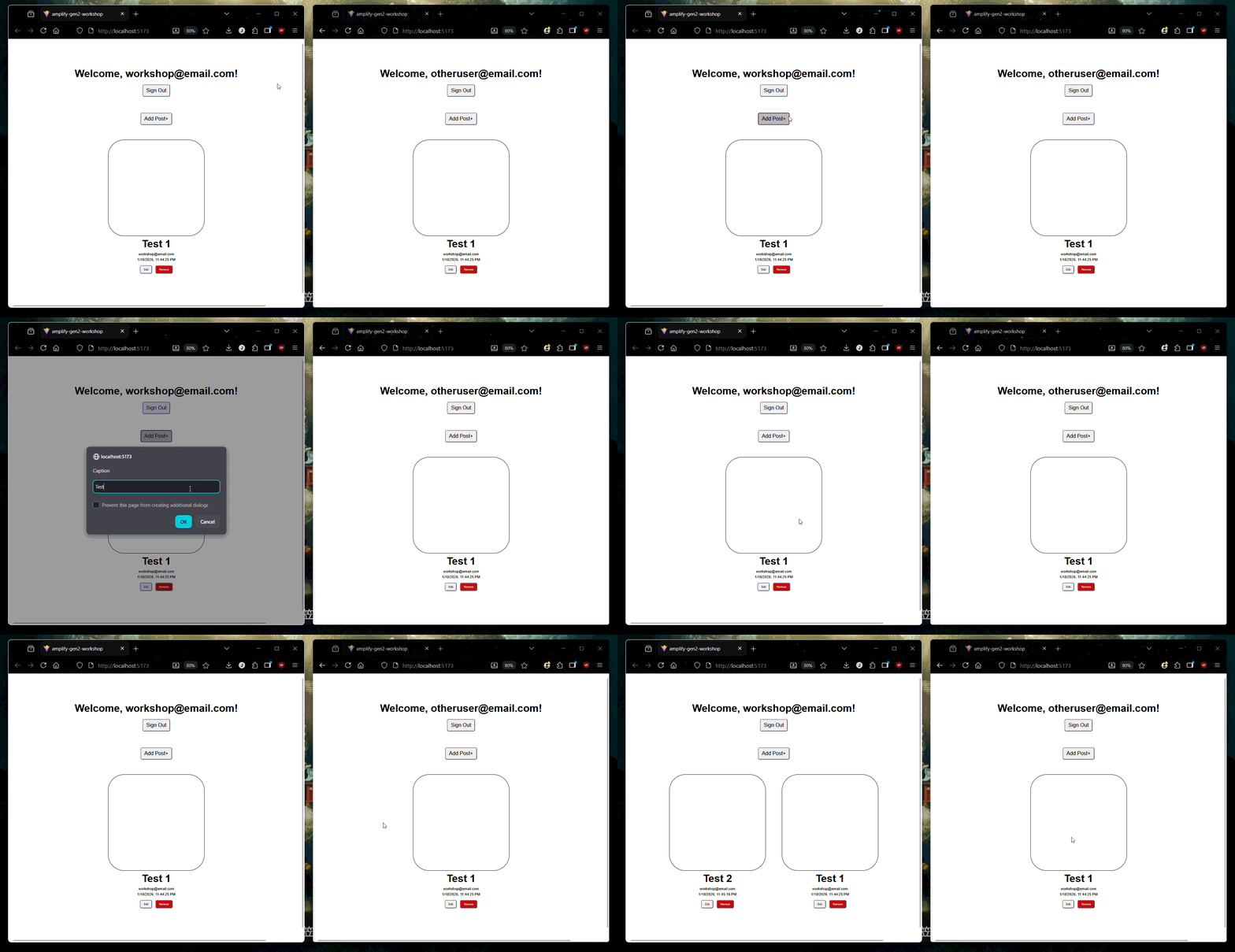
This brings us to the second way of reading data, which is using Amplify's observeQuery method. Instead of manually fetching posts every time something changes, observeQuery automatically listens for updates in your data backend and keeps your UI in sync in real time across devices.
Set Up Real-time Subscription
- Remove all instances of the
fetchPosts()function you previously created. - Then replace your existing
useEffect()with the code below:
// src/components/Posts.tsx

useEffect(() => {
  const sub = client.models.Post.observeQuery().subscribe({
    next: ({ items }) => {
      setPosts([...items]);
    },
  });

  return () => sub.unsubscribe();
}, []);
observeQuery()creates a real-time subscription to your Post model- Whenever posts are created, updated, or deleted, the
.subscribe()listens and automatically receives the latest data - The cleanup function
.unsubscribe()ensures it stops listening when the component unmounts to prevent memory leaks
After creating a post, you should see it appear automatically in all devices simultaneously without refreshing the page.
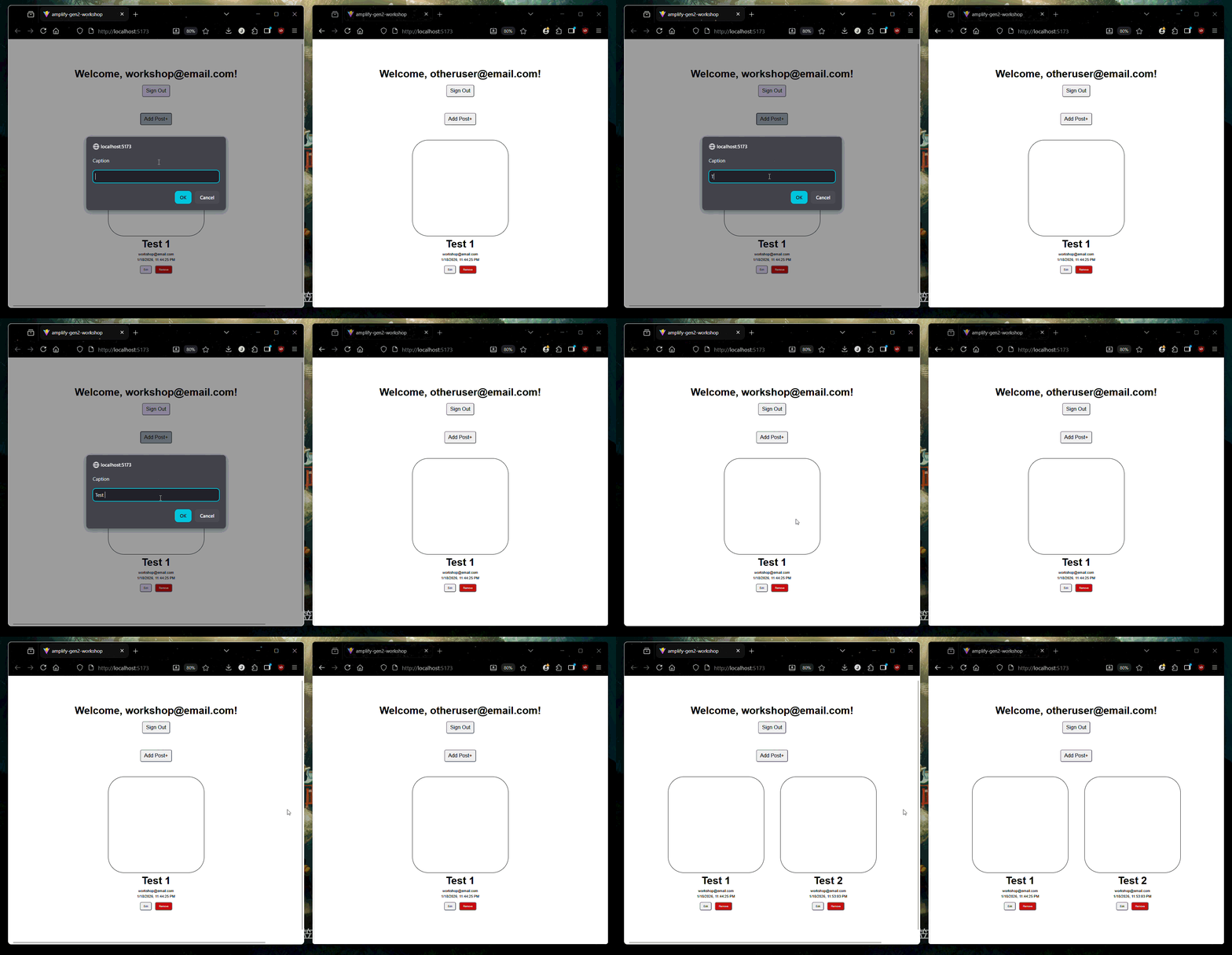
Congrats, you now have a real-time post reading functionality!